# ReSpeaker 2-Mic Pi HAT
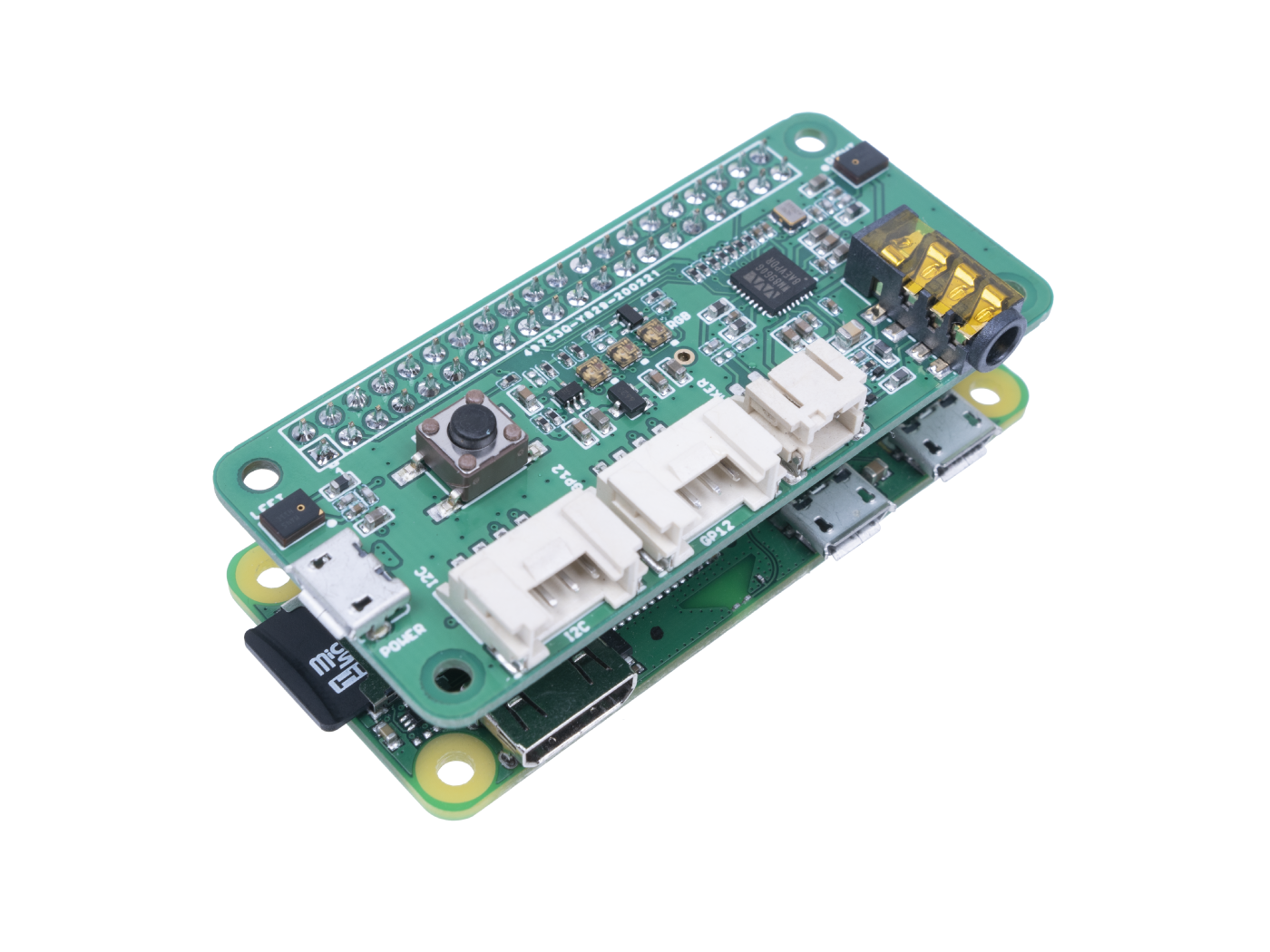 Peripheral controller for the [ReSpeaker 2-Mic Pi HAT](https://wiki.seeedstudio.com/ReSpeaker_2_Mics_Pi_HAT/) by Seeed Studio, running alongside the Linux Voice Assistant (LVA) container.
The controller runs as a separate Docker container on the same Raspberry Pi. It connects to LVA's peripheral WebSocket API, drives the 3 APA102 RGB LEDs, and maps the single onboard button to context-aware LVA commands with multipress support.
---
## Hardware
| Component | Details |
|---|---|
| Microphone array | 2 × MEMS mics — MIC_L (left), MIC_R (right) — WM8960 codec, I2S |
| LED strip | 3 × APA102 RGB LEDs in a row |
| Speaker output | JST 2.0 connector + 3.5 mm audio jack (WM8960 codec) |
| Button | 1 × onboard tactile button (GPIO 17) |
| Interface | Raspberry Pi 40-pin HAT connector |
### Compatible hardware
| Board | Notes |
|---|---|
| Raspberry Pi Zero 2 W | Recommended for compact builds |
| Raspberry Pi 3 B / B+ | Fully supported |
| Raspberry Pi 4 B | Fully supported |
| Raspberry Pi 5 | Requires seeed-voicecard driver compatible with kernel 6.6+ — see Step 1 |
---
## GPIO pin mapping
### LED strip (APA102)
| Signal | GPIO (BCM) | Notes |
|---|---|---|
| MOSI (data) | GPIO 10 | SPI0 MOSI |
| SCLK (clock) | GPIO 11 | SPI0 SCLK |
| CE | GPIO 8 (CE0) | /dev/spidev0.0 |
### Button
| Function | GPIO (BCM) | Notes |
|---|---|---|
| Context action | GPIO 17 | Active low, internal pull-up enabled |
---
## LED positions
```
┌──────────────────────────────────────┐
│ [LED 0] [LED 1] [LED 2] │
│ MIC_L centre MIC_R │
└──────────────────────────────────────┘
```
LED 0 sits above MIC_L and LED 2 sits above MIC_R. When the microphone is muted, these two LEDs turn red to visually indicate the mic positions are disabled. The centre LED (1) is used for general status animations.
---
## LED animations
| LVA state | Animation | LEDs |
|---|---|---|
| Not ready / no HA connection | Dim red pulse | All 3 |
| Idle | Solid user color when the LED light is on, else off | All 3 |
| Wake word detected | Flash (×2) in user color | All 3 |
| Listening | Chase (bouncing left ↔ right) in user color | 1 at a time |
| Thinking | Yellow pulse | All 3 |
| TTS speaking | Green breathe (slow sine) | All 3 |
| **Muted** | **Solid red** | **LEDs 0 & 2 only (mic positions)** |
| Error | Red flash (×3), then off | All 3 |
| **Timer ringing** | **Blue flash (repeating)** | **All 3** |
| Timer ticking | Dim cyan, brightness ∝ time left | All 3 |
| Media playing | Dim green steady | All 3 |
| **Volume muted** | **Solid red** | **LED 1 only (center led)** |
"User color" comes from the Home Assistant Light entity described below (default: HAVPE-style blue). HA brightness scales every animation in this table. Semantic colors (Thinking yellow, Speaking green, Muted red, Timer cyan/blue) are hardcoded so they remain recognisable across user customisation.
---
## Home Assistant Light entity
On connect the controller registers a Light entity with LVA, which appears in Home Assistant as `light._leds`. It defaults off, matching the Voice PE LED Ring; turn it on for a solid idle glow and set its RGB color and brightness from the device page.
### Effects
| Effect | Behaviour |
|---|---|
| `Voice Assistant` (default) | Run the pipeline animations from the table above. Wake word and Listening are tinted with the HA color; brightness scales every animation. |
Like the Home Assistant Voice PE, this example exposes a single Voice Assistant effect: the pipeline animations always run and can't be switched off from HA. The peripheral protocol itself accepts any number of effects, so your own integration is free to declare more (a color loop, a static accent, and so on) — see the [peripheral API docs](../../docs/peripheral_api.md).
### Brightness, on/off, and color
Matching the HA Voice PE LED Ring, the Light defaults off, so the LEDs stay dark while idle until you turn it on; once on, idle shows the solid color, and turning it off again just removes that idle glow. The voice animations always run either way (on/off only gates the idle glow, it does not disable them), so the effect can't be switched off completely. Brightness scales linearly across every animation, and RGB color is the solid idle color and tints the Wake word / Listening animations.
---
## Button behaviour
The single onboard button supports both single-press context actions and multi-press gestures:
### Single press (< 1000 ms hold time)
Context-aware command based on current state, mirroring the Home Assistant Voice PE centre button priority:
| Current state | Command sent |
|---|---|
| Timer ringing | `stop_timer_ringing` |
| Wake word / listening / thinking / TTS speaking | `stop_pipeline` |
| Music / media playing | `stop_media_player` |
| Any other (idle) | `start_listening` |
### Multi-press gestures
Detected via press timing within a detection window (250 ms between releases, matching the HAVPE centre button):
| Gesture | Timing | Command sent |
|---|---|---|
| **Double press** | 2 presses < 250 ms apart | `button_double_press` |
| **Triple press** | 3 presses < 250 ms apart | `button_triple_press` |
| **Long press** | Single press held > 1000 ms | `button_long_press` |
Each gesture plays its own short confirmation sound on the satellite speaker so the user knows it was detected. Sound paths are configurable via `--button-double-press-sound`, `--button-triple-press-sound`, and `--button-long-press-sound`.
Multi-press commands are useful for triggering custom Home Assistant automations. For example:
- Double press → start a specific routine or mode
- Triple press → access a menu or configuration option
- Long press → toggle do-not-disturb or night mode
These commands are exposed as button press events to Home Assistant (via the registered button sensor), allowing you to create custom automations via `button_press_event` triggers.
---
## Installation
### Step 1 — Install the seeed-voicecard audio driver
> **This must be done on the host Raspberry Pi, not inside Docker.**
```bash
git clone https://github.com/respeaker/seeed-voicecard
cd seeed-voicecard
sudo ./install.sh
sudo reboot
```
After rebooting, verify the microphone and speaker appear:
```bash
arecord -l
# Should list: seeded-2mic-voicecard
aplay -l
# Should list: seeded-2mic-voicecard
```
> **Note:** The seeed-voicecard installer also enables SPI automatically. Check `/boot/firmware/config.txt` after running `install.sh` before proceeding to step 2.
> **Pi 5 note:** The standard seeed-voicecard repository may not support the Pi 5 kernel (6.6+). Check the [seeed-voicecard GitHub issues](https://github.com/respeaker/seeed-voicecard/issues) for a compatible branch or fork before proceeding.
### Step 2 — Enable SPI in config.txt
If `dtparam=spi=on` is not already present in `/boot/firmware/config.txt`, add it:
```ini
dtparam=spi=on
# Also disable onboard audio if you see conflicts:
# dtparam=audio=on ← comment this out
```
Reboot and verify:
```bash
ls /dev/spidev*
# Should show: /dev/spidev0.0
```
### Step 3 — Add user to GPIO and SPI groups
```bash
sudo usermod -aG gpio,spi $USER
```
Log out and back in. Check your UID:
```bash
id -u $USER
```
If it is not `1000`, update the `user:` field in `compose.yml` to match.
> **Pi 5 note:** On Pi 5, GPIO is exposed as `/dev/gpiochip4` not `/dev/gpiochip0`. Update the `devices` mapping in `compose.yml`:
> ```yaml
> devices:
> - /dev/spidev0.0:/dev/spidev0.0
> - /dev/gpiochip4:/dev/gpiochip4
> ```
### Step 4 — File structure
```
ReSpeaker 2mic HAT/
├── Dockerfile
├── compose.yml
├── requirements.txt
└── respeaker_2mic_hat.py
```
### Step 5 — Build and start
#### Option A — Run with Docker Compose (recommended)
```bash
docker compose up -d
```
Check logs:
```bash
docker compose logs -f
```
#### Option B — Run directly with Python
```bash
pip install -r requirements.txt
python respeaker_2mic_hat.py --host localhost --port 6055
```
---
## Using the speaker output with LVA
The WM8960 codec on the HAT also drives the speaker. After installing seeed-voicecard, pass the device name to LVA:
```bash
--audio-output-device "seeed-2mic-voicecard"
```
Or set the environment variable in LVA's compose file:
```yaml
environment:
- AUDIO_OUTPUT_DEVICE=seeed-2mic-voicecard
```
---
## Configuration
All configuration is at the top of `respeaker_2mic_hat.py`:
```python
# LVA connection
DEFAULT_LVA_HOST = "localhost"
DEFAULT_LVA_PORT = 6055
# APA102 SPI
SPI_BUS = 0
SPI_DEVICE = 0 # /dev/spidev0.0
SPI_SPEED_HZ = 8_000_000
LED_COUNT = 3
LED_BRIGHTNESS = 0.6 # 0.0–1.0
# GPIO button
BTN_ACTION = 17
BTN_DEBOUNCE_MS = 150
# Button multipress timing
MULTIPRESS_TIMEOUT_MS = 500 # Time window between presses (ms)
LONG_PRESS_MS = 1000 # Duration to detect long press (ms)
```
### Command-line arguments
| Argument | Default | Description |
|---|---|---|
| `--host` | `localhost` | LVA container hostname or IP |
| `--port` | `6055` | LVA peripheral API port |
| `--debug` | off | Enable verbose debug logging |
---
## Drivers summary
| Component | Driver needed | Where to install | How |
|---|---|---|---|
| Microphones + speaker (WM8960) | **seeed-voicecard** | **Host Pi** | `git clone` + `sudo ./install.sh`, then reboot |
| LED strip (APA102) | SPI overlay | **Host Pi** | `dtparam=spi=on` in `config.txt`, then reboot |
| Button | None | — | `gpiozero` + `lgpio` installed inside container via pip |
---
## Troubleshooting
### Microphone or speaker not detected by LVA
1. Confirm `arecord -l` and `aplay -l` show `seeed-2mic-voicecard` on the host.
2. If not, re-run `sudo ./install.sh` and reboot.
3. On Raspberry Pi 5 with kernel 6.6+, check the [seeed-voicecard GitHub issues](https://github.com/respeaker/seeed-voicecard/issues) for a compatible branch.
### LEDs do not light up
1. Confirm `dtparam=spi=on` is in `/boot/firmware/config.txt` and the Pi has been rebooted.
2. Check `/dev/spidev0.0` exists: `ls /dev/spidev*`.
3. Confirm the container user is in the `spi` group: `groups $USER`.
4. Run with `--debug` and look for `APA102 SPI driver opened` in the logs. If `spidev not found` appears, the Python package failed to install — rebuild the image.
### Button does not respond
1. Confirm `/dev/gpiochip0` (or `/dev/gpiochip4` on Pi 5) is mapped in the compose `devices` section.
2. Run with `--debug` — each button press logs `Button → `.
### Pi 5 — button not working
On Pi 5, GPIO is on `/dev/gpiochip4` not `/dev/gpiochip0`. Update `compose.yml`:
```yaml
devices:
- /dev/spidev0.0:/dev/spidev0.0
- /dev/gpiochip4:/dev/gpiochip4
```
### LVA not reachable
1. Confirm LVA is running and `--disable-peripheral-api` was not passed.
2. With `network_mode: host`, `localhost` resolves to the Pi itself.
3. Check port 6055 is not blocked: `nc -zv localhost 6055`.
Peripheral controller for the [ReSpeaker 2-Mic Pi HAT](https://wiki.seeedstudio.com/ReSpeaker_2_Mics_Pi_HAT/) by Seeed Studio, running alongside the Linux Voice Assistant (LVA) container.
The controller runs as a separate Docker container on the same Raspberry Pi. It connects to LVA's peripheral WebSocket API, drives the 3 APA102 RGB LEDs, and maps the single onboard button to context-aware LVA commands with multipress support.
---
## Hardware
| Component | Details |
|---|---|
| Microphone array | 2 × MEMS mics — MIC_L (left), MIC_R (right) — WM8960 codec, I2S |
| LED strip | 3 × APA102 RGB LEDs in a row |
| Speaker output | JST 2.0 connector + 3.5 mm audio jack (WM8960 codec) |
| Button | 1 × onboard tactile button (GPIO 17) |
| Interface | Raspberry Pi 40-pin HAT connector |
### Compatible hardware
| Board | Notes |
|---|---|
| Raspberry Pi Zero 2 W | Recommended for compact builds |
| Raspberry Pi 3 B / B+ | Fully supported |
| Raspberry Pi 4 B | Fully supported |
| Raspberry Pi 5 | Requires seeed-voicecard driver compatible with kernel 6.6+ — see Step 1 |
---
## GPIO pin mapping
### LED strip (APA102)
| Signal | GPIO (BCM) | Notes |
|---|---|---|
| MOSI (data) | GPIO 10 | SPI0 MOSI |
| SCLK (clock) | GPIO 11 | SPI0 SCLK |
| CE | GPIO 8 (CE0) | /dev/spidev0.0 |
### Button
| Function | GPIO (BCM) | Notes |
|---|---|---|
| Context action | GPIO 17 | Active low, internal pull-up enabled |
---
## LED positions
```
┌──────────────────────────────────────┐
│ [LED 0] [LED 1] [LED 2] │
│ MIC_L centre MIC_R │
└──────────────────────────────────────┘
```
LED 0 sits above MIC_L and LED 2 sits above MIC_R. When the microphone is muted, these two LEDs turn red to visually indicate the mic positions are disabled. The centre LED (1) is used for general status animations.
---
## LED animations
| LVA state | Animation | LEDs |
|---|---|---|
| Not ready / no HA connection | Dim red pulse | All 3 |
| Idle | Solid user color when the LED light is on, else off | All 3 |
| Wake word detected | Flash (×2) in user color | All 3 |
| Listening | Chase (bouncing left ↔ right) in user color | 1 at a time |
| Thinking | Yellow pulse | All 3 |
| TTS speaking | Green breathe (slow sine) | All 3 |
| **Muted** | **Solid red** | **LEDs 0 & 2 only (mic positions)** |
| Error | Red flash (×3), then off | All 3 |
| **Timer ringing** | **Blue flash (repeating)** | **All 3** |
| Timer ticking | Dim cyan, brightness ∝ time left | All 3 |
| Media playing | Dim green steady | All 3 |
| **Volume muted** | **Solid red** | **LED 1 only (center led)** |
"User color" comes from the Home Assistant Light entity described below (default: HAVPE-style blue). HA brightness scales every animation in this table. Semantic colors (Thinking yellow, Speaking green, Muted red, Timer cyan/blue) are hardcoded so they remain recognisable across user customisation.
---
## Home Assistant Light entity
On connect the controller registers a Light entity with LVA, which appears in Home Assistant as `light._leds`. It defaults off, matching the Voice PE LED Ring; turn it on for a solid idle glow and set its RGB color and brightness from the device page.
### Effects
| Effect | Behaviour |
|---|---|
| `Voice Assistant` (default) | Run the pipeline animations from the table above. Wake word and Listening are tinted with the HA color; brightness scales every animation. |
Like the Home Assistant Voice PE, this example exposes a single Voice Assistant effect: the pipeline animations always run and can't be switched off from HA. The peripheral protocol itself accepts any number of effects, so your own integration is free to declare more (a color loop, a static accent, and so on) — see the [peripheral API docs](../../docs/peripheral_api.md).
### Brightness, on/off, and color
Matching the HA Voice PE LED Ring, the Light defaults off, so the LEDs stay dark while idle until you turn it on; once on, idle shows the solid color, and turning it off again just removes that idle glow. The voice animations always run either way (on/off only gates the idle glow, it does not disable them), so the effect can't be switched off completely. Brightness scales linearly across every animation, and RGB color is the solid idle color and tints the Wake word / Listening animations.
---
## Button behaviour
The single onboard button supports both single-press context actions and multi-press gestures:
### Single press (< 1000 ms hold time)
Context-aware command based on current state, mirroring the Home Assistant Voice PE centre button priority:
| Current state | Command sent |
|---|---|
| Timer ringing | `stop_timer_ringing` |
| Wake word / listening / thinking / TTS speaking | `stop_pipeline` |
| Music / media playing | `stop_media_player` |
| Any other (idle) | `start_listening` |
### Multi-press gestures
Detected via press timing within a detection window (250 ms between releases, matching the HAVPE centre button):
| Gesture | Timing | Command sent |
|---|---|---|
| **Double press** | 2 presses < 250 ms apart | `button_double_press` |
| **Triple press** | 3 presses < 250 ms apart | `button_triple_press` |
| **Long press** | Single press held > 1000 ms | `button_long_press` |
Each gesture plays its own short confirmation sound on the satellite speaker so the user knows it was detected. Sound paths are configurable via `--button-double-press-sound`, `--button-triple-press-sound`, and `--button-long-press-sound`.
Multi-press commands are useful for triggering custom Home Assistant automations. For example:
- Double press → start a specific routine or mode
- Triple press → access a menu or configuration option
- Long press → toggle do-not-disturb or night mode
These commands are exposed as button press events to Home Assistant (via the registered button sensor), allowing you to create custom automations via `button_press_event` triggers.
---
## Installation
### Step 1 — Install the seeed-voicecard audio driver
> **This must be done on the host Raspberry Pi, not inside Docker.**
```bash
git clone https://github.com/respeaker/seeed-voicecard
cd seeed-voicecard
sudo ./install.sh
sudo reboot
```
After rebooting, verify the microphone and speaker appear:
```bash
arecord -l
# Should list: seeded-2mic-voicecard
aplay -l
# Should list: seeded-2mic-voicecard
```
> **Note:** The seeed-voicecard installer also enables SPI automatically. Check `/boot/firmware/config.txt` after running `install.sh` before proceeding to step 2.
> **Pi 5 note:** The standard seeed-voicecard repository may not support the Pi 5 kernel (6.6+). Check the [seeed-voicecard GitHub issues](https://github.com/respeaker/seeed-voicecard/issues) for a compatible branch or fork before proceeding.
### Step 2 — Enable SPI in config.txt
If `dtparam=spi=on` is not already present in `/boot/firmware/config.txt`, add it:
```ini
dtparam=spi=on
# Also disable onboard audio if you see conflicts:
# dtparam=audio=on ← comment this out
```
Reboot and verify:
```bash
ls /dev/spidev*
# Should show: /dev/spidev0.0
```
### Step 3 — Add user to GPIO and SPI groups
```bash
sudo usermod -aG gpio,spi $USER
```
Log out and back in. Check your UID:
```bash
id -u $USER
```
If it is not `1000`, update the `user:` field in `compose.yml` to match.
> **Pi 5 note:** On Pi 5, GPIO is exposed as `/dev/gpiochip4` not `/dev/gpiochip0`. Update the `devices` mapping in `compose.yml`:
> ```yaml
> devices:
> - /dev/spidev0.0:/dev/spidev0.0
> - /dev/gpiochip4:/dev/gpiochip4
> ```
### Step 4 — File structure
```
ReSpeaker 2mic HAT/
├── Dockerfile
├── compose.yml
├── requirements.txt
└── respeaker_2mic_hat.py
```
### Step 5 — Build and start
#### Option A — Run with Docker Compose (recommended)
```bash
docker compose up -d
```
Check logs:
```bash
docker compose logs -f
```
#### Option B — Run directly with Python
```bash
pip install -r requirements.txt
python respeaker_2mic_hat.py --host localhost --port 6055
```
---
## Using the speaker output with LVA
The WM8960 codec on the HAT also drives the speaker. After installing seeed-voicecard, pass the device name to LVA:
```bash
--audio-output-device "seeed-2mic-voicecard"
```
Or set the environment variable in LVA's compose file:
```yaml
environment:
- AUDIO_OUTPUT_DEVICE=seeed-2mic-voicecard
```
---
## Configuration
All configuration is at the top of `respeaker_2mic_hat.py`:
```python
# LVA connection
DEFAULT_LVA_HOST = "localhost"
DEFAULT_LVA_PORT = 6055
# APA102 SPI
SPI_BUS = 0
SPI_DEVICE = 0 # /dev/spidev0.0
SPI_SPEED_HZ = 8_000_000
LED_COUNT = 3
LED_BRIGHTNESS = 0.6 # 0.0–1.0
# GPIO button
BTN_ACTION = 17
BTN_DEBOUNCE_MS = 150
# Button multipress timing
MULTIPRESS_TIMEOUT_MS = 500 # Time window between presses (ms)
LONG_PRESS_MS = 1000 # Duration to detect long press (ms)
```
### Command-line arguments
| Argument | Default | Description |
|---|---|---|
| `--host` | `localhost` | LVA container hostname or IP |
| `--port` | `6055` | LVA peripheral API port |
| `--debug` | off | Enable verbose debug logging |
---
## Drivers summary
| Component | Driver needed | Where to install | How |
|---|---|---|---|
| Microphones + speaker (WM8960) | **seeed-voicecard** | **Host Pi** | `git clone` + `sudo ./install.sh`, then reboot |
| LED strip (APA102) | SPI overlay | **Host Pi** | `dtparam=spi=on` in `config.txt`, then reboot |
| Button | None | — | `gpiozero` + `lgpio` installed inside container via pip |
---
## Troubleshooting
### Microphone or speaker not detected by LVA
1. Confirm `arecord -l` and `aplay -l` show `seeed-2mic-voicecard` on the host.
2. If not, re-run `sudo ./install.sh` and reboot.
3. On Raspberry Pi 5 with kernel 6.6+, check the [seeed-voicecard GitHub issues](https://github.com/respeaker/seeed-voicecard/issues) for a compatible branch.
### LEDs do not light up
1. Confirm `dtparam=spi=on` is in `/boot/firmware/config.txt` and the Pi has been rebooted.
2. Check `/dev/spidev0.0` exists: `ls /dev/spidev*`.
3. Confirm the container user is in the `spi` group: `groups $USER`.
4. Run with `--debug` and look for `APA102 SPI driver opened` in the logs. If `spidev not found` appears, the Python package failed to install — rebuild the image.
### Button does not respond
1. Confirm `/dev/gpiochip0` (or `/dev/gpiochip4` on Pi 5) is mapped in the compose `devices` section.
2. Run with `--debug` — each button press logs `Button → `.
### Pi 5 — button not working
On Pi 5, GPIO is on `/dev/gpiochip4` not `/dev/gpiochip0`. Update `compose.yml`:
```yaml
devices:
- /dev/spidev0.0:/dev/spidev0.0
- /dev/gpiochip4:/dev/gpiochip4
```
### LVA not reachable
1. Confirm LVA is running and `--disable-peripheral-api` was not passed.
2. With `network_mode: host`, `localhost` resolves to the Pi itself.
3. Check port 6055 is not blocked: `nc -zv localhost 6055`.