# Peripheral Web Console
The Peripheral Web Console is a web-based interface for testing and interacting with the Linux Voice Assistant WebSocket API. It allows you to monitor LVA state and send commands to control the voice assistant from a browser.
## Overview
This HTML console provides:
- Real-time connection status to the LVA WebSocket server
- Live event feed showing all LVA events (wake word detected, listening, TTS, timers, etc.)
- Control buttons to send commands to LVA (mute/unmute, volume control, start listening, etc.)
- Visual indicators for volume, mute state, and Home Assistant connection status
- Audio level visualization
## Getting Started
### Step 1: Download the HTML File
Download [peripheral_web_console.html](peripheral_web_console.html)
### Step 2: Open the HTML File in Your Browser
Open the file using any modern web browser (Chrome, Firefox, Safari, Edge):
 **Option A: Direct File Open**
- Double-click the `peripheral_web_console.html` file
- Or drag it into your browser window
- The file will open as a local file URL (e.g., `file:///path/to/peripheral_web_console.html`)
**Option B: Using a Local Web Server**
```bash
# Using Python 3
python -m http.server 8000
# Using Python 2
python -m SimpleHTTPServer 8000
# Then navigate to: http://localhost:8000/peripheral_web_console.html
```
### Step 3: Configure the WebSocket Connection URL
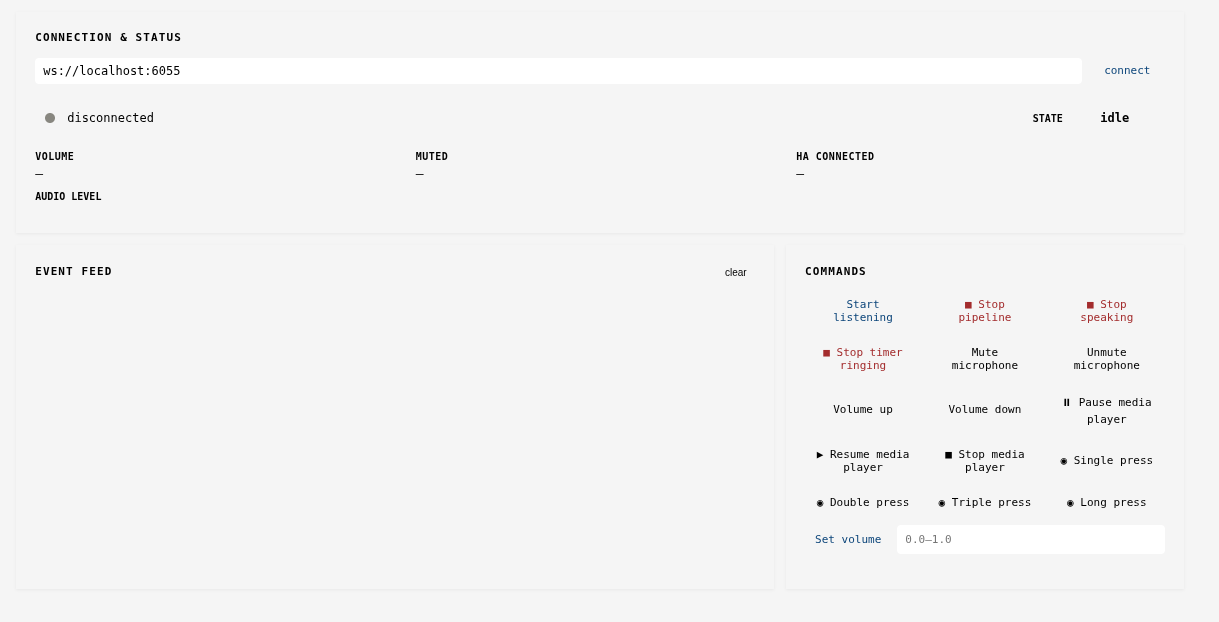
When the page loads, you'll see the **CONNECTION & STATUS** section at the top with:
- Current WebSocket URL (default: `ws://localhost:6055`)
- A "connect" button
**To modify the connection URL:**
1. Look at the input field showing the WebSocket address
2. By default, it points to `ws://localhost:6055`
3. Change this if your LVA server is running on a different host or port:
- Local development: `ws://localhost:6055`
- Remote server: `ws://your-server-ip:6055`
- Docker container: `ws://lva-container:6055` (if using Docker networking)
### Step 4: Connect to LVA
**Option A: Direct File Open**
- Double-click the `peripheral_web_console.html` file
- Or drag it into your browser window
- The file will open as a local file URL (e.g., `file:///path/to/peripheral_web_console.html`)
**Option B: Using a Local Web Server**
```bash
# Using Python 3
python -m http.server 8000
# Using Python 2
python -m SimpleHTTPServer 8000
# Then navigate to: http://localhost:8000/peripheral_web_console.html
```
### Step 3: Configure the WebSocket Connection URL
When the page loads, you'll see the **CONNECTION & STATUS** section at the top with:
- Current WebSocket URL (default: `ws://localhost:6055`)
- A "connect" button
**To modify the connection URL:**
1. Look at the input field showing the WebSocket address
2. By default, it points to `ws://localhost:6055`
3. Change this if your LVA server is running on a different host or port:
- Local development: `ws://localhost:6055`
- Remote server: `ws://your-server-ip:6055`
- Docker container: `ws://lva-container:6055` (if using Docker networking)
### Step 4: Connect to LVA
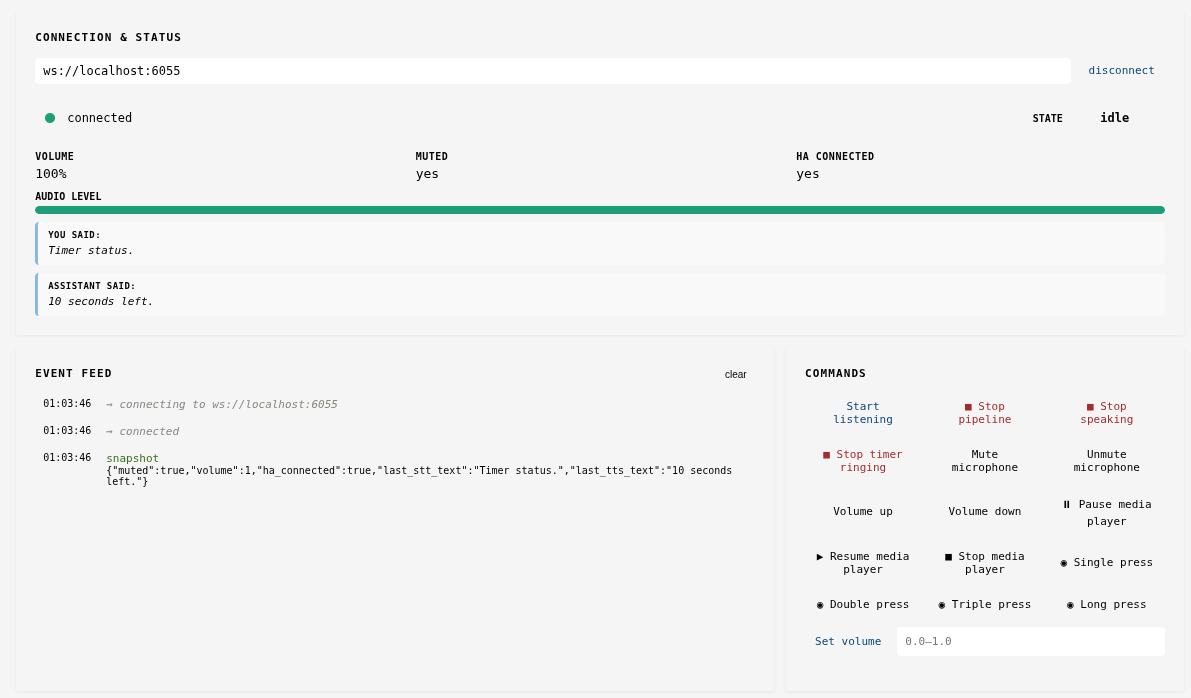 1. Once you've configured the URL, click the **"connect"** button
2. The page will attempt to establish a WebSocket connection to the LVA server
3. On successful connection:
- The status indicator changes from "disconnected" (gray dot) to "connected" (green dot)
- You'll receive a "snapshot" event showing the current state (volume, mute status, last recognized text, etc.)
- Event feed will show: `connecting to ws://...`, `connected`, `snapshot`
4. If connection fails:
- Ensure LVA is running and the WebSocket server is active
- Verify the URL is correct (check host and port)
- Check browser console (F12 → Console tab) for error messages
- Verify network connectivity and firewall rules
## Using the Web Console
### Connection & Status Section
Displays real-time information:
- **Status Indicator**: Gray (disconnected) or Green (connected)
- **WebSocket URL**: The connection endpoint
- **STATE**: Current LVA state (idle, listening, thinking, etc.)
- **VOLUME**: Current volume level (0-100%)
- **MUTED**: Microphone mute status (yes/no)
- **HA CONNECTED**: Home Assistant connection status
- **AUDIO LEVEL**: Visual bar showing real-time audio input level
### Event Feed
Shows a chronological log of all events received from LVA:
**Example events:**
- `connecting to ws://localhost:6055`
- `connected`
- `snapshot` - Initial state when connected
- `wake_word_detected` - Wake word detected
- `listening` - Microphone is recording
- `stt_text: "set a timer for 10 seconds"` - Recognized speech
- `thinking` - Processing the command
- `tts_text: "OK, timer set."` - Assistant's response
- `tts_speaking` - Playing the response audio
- `idle` - Returned to waiting state
- `timer_ticking`, `timer_ringing` - Timer events
- `volume_changed`, `volume_muted` - Volume events
- `disconnected` - Connection lost
Click "clear" to remove all events from the feed.
### Commands Section
Send commands to LVA by clicking buttons:
**Listening & Pipeline:**
- **Start listening** - Manually trigger listening (as if wake word was detected)
- **Stop pipeline** - Abort the current voice pipeline (stops listening, thinking, speaking)
**Audio Control:**
- **Volume up** / **Volume down** - Adjust volume by small increments
- **Set volume** - Set exact volume level using slider (0.0-1.0)
- **Mute microphone** / **Unmute microphone** - Toggle microphone mute
**Media & Timers:**
- **Pause media player** / **Resume media player** / **Stop media player** - Control music playback
- **Stop timer ringing** - Silence an active timer alarm
**Button Presses:**
- **Single press**, **Double press**, **Triple press**, **Long press** - Simulate physical button inputs
- Useful for testing button-based interactions if LVA is connected to hardware buttons
## Example Workflow
1. **Start LVA server** with WebSocket peripheral API enabled
2. **Open** `peripheral_web_console.html` in browser
3. **Click "connect"** to establish WebSocket connection
4. **Observe events** as you interact with LVA via voice (e.g., "Hey Home Assistant, what time is it?")
5. **Send commands** from the console (e.g., click "Mute microphone" to test mute functionality)
6. **Watch feedback** in the event feed and status indicators
## Troubleshooting
### Connection Won't Establish
- **Problem**: "disconnected" status persists
- **Solutions**:
- Verify LVA is running: `docker ps` (if using Docker) or check if the service started
- Check the WebSocket URL is correct
- Ensure firewall allows traffic on port 6055
- Check browser console (F12) for detailed error messages
### No Events Appearing
- **Problem**: Connected but no events in feed
- **Solutions**:
- Trigger an event manually (speak a wake word, click a button)
- Check that the LVA peripheral API server is properly initialized
- Verify the WebSocket connection is truly active (status should show "connected")
### Volume/State Not Updating
- **Problem**: Controls don't seem to work
- **Solutions**:
- Confirm "connected" status is shown
- Check that LVA is not muted at the system level
- Try stopping and reconnecting
- Check LVA logs for errors
### CORS or Mixed Content Errors
- **Problem**: Console shows security errors
- **Solutions**:
- Use `http://` with `ws://` (not `https://` with `wss://`)
- Serve the HTML over HTTP if testing locally
- Ensure your LVA server is configured for WebSocket connections
## Protocol Details
The console communicates with LVA using JSON over WebSocket:
**Messages from LVA (Events):**
```json
{"event": "event_name", "data": {...}}
```
**Messages to LVA (Commands):**
```json
{"command": "command_name", "data": {...}}
```
**Initial Snapshot (on connect):**
```json
{
"event": "snapshot",
"data": {
"muted": false,
"volume": 1.0,
"ha_connected": true,
"last_stt_text": "...",
"last_tts_text": "..."
}
}
```
For detailed protocol documentation, see `peripheral_api.py` in the Linux Voice Assistant repository.
## Advanced Usage
### Accessing Remotely
To access the console from another computer:
1. **Expose LVA server** to your network (modify firewall/port forwarding)
2. **Open console** from remote machine
3. **Update WebSocket URL** to your LVA server's network address:
```
ws://your-lva-server-ip:6055
```
### Integration with Peripherals
This console mirrors the interface used by physical peripherals (LED boards, buttons, etc.):
- Hardware peripherals use the same WebSocket API
- Testing here helps debug peripheral integrations
- Both console and hardware can be connected simultaneously
### Development & Debugging
Use browser Developer Tools (F12) to:
- Monitor WebSocket messages in Network tab
- Check console for JavaScript errors
- Inspect HTML structure and styling
- Test custom commands before deploying to hardware
1. Once you've configured the URL, click the **"connect"** button
2. The page will attempt to establish a WebSocket connection to the LVA server
3. On successful connection:
- The status indicator changes from "disconnected" (gray dot) to "connected" (green dot)
- You'll receive a "snapshot" event showing the current state (volume, mute status, last recognized text, etc.)
- Event feed will show: `connecting to ws://...`, `connected`, `snapshot`
4. If connection fails:
- Ensure LVA is running and the WebSocket server is active
- Verify the URL is correct (check host and port)
- Check browser console (F12 → Console tab) for error messages
- Verify network connectivity and firewall rules
## Using the Web Console
### Connection & Status Section
Displays real-time information:
- **Status Indicator**: Gray (disconnected) or Green (connected)
- **WebSocket URL**: The connection endpoint
- **STATE**: Current LVA state (idle, listening, thinking, etc.)
- **VOLUME**: Current volume level (0-100%)
- **MUTED**: Microphone mute status (yes/no)
- **HA CONNECTED**: Home Assistant connection status
- **AUDIO LEVEL**: Visual bar showing real-time audio input level
### Event Feed
Shows a chronological log of all events received from LVA:
**Example events:**
- `connecting to ws://localhost:6055`
- `connected`
- `snapshot` - Initial state when connected
- `wake_word_detected` - Wake word detected
- `listening` - Microphone is recording
- `stt_text: "set a timer for 10 seconds"` - Recognized speech
- `thinking` - Processing the command
- `tts_text: "OK, timer set."` - Assistant's response
- `tts_speaking` - Playing the response audio
- `idle` - Returned to waiting state
- `timer_ticking`, `timer_ringing` - Timer events
- `volume_changed`, `volume_muted` - Volume events
- `disconnected` - Connection lost
Click "clear" to remove all events from the feed.
### Commands Section
Send commands to LVA by clicking buttons:
**Listening & Pipeline:**
- **Start listening** - Manually trigger listening (as if wake word was detected)
- **Stop pipeline** - Abort the current voice pipeline (stops listening, thinking, speaking)
**Audio Control:**
- **Volume up** / **Volume down** - Adjust volume by small increments
- **Set volume** - Set exact volume level using slider (0.0-1.0)
- **Mute microphone** / **Unmute microphone** - Toggle microphone mute
**Media & Timers:**
- **Pause media player** / **Resume media player** / **Stop media player** - Control music playback
- **Stop timer ringing** - Silence an active timer alarm
**Button Presses:**
- **Single press**, **Double press**, **Triple press**, **Long press** - Simulate physical button inputs
- Useful for testing button-based interactions if LVA is connected to hardware buttons
## Example Workflow
1. **Start LVA server** with WebSocket peripheral API enabled
2. **Open** `peripheral_web_console.html` in browser
3. **Click "connect"** to establish WebSocket connection
4. **Observe events** as you interact with LVA via voice (e.g., "Hey Home Assistant, what time is it?")
5. **Send commands** from the console (e.g., click "Mute microphone" to test mute functionality)
6. **Watch feedback** in the event feed and status indicators
## Troubleshooting
### Connection Won't Establish
- **Problem**: "disconnected" status persists
- **Solutions**:
- Verify LVA is running: `docker ps` (if using Docker) or check if the service started
- Check the WebSocket URL is correct
- Ensure firewall allows traffic on port 6055
- Check browser console (F12) for detailed error messages
### No Events Appearing
- **Problem**: Connected but no events in feed
- **Solutions**:
- Trigger an event manually (speak a wake word, click a button)
- Check that the LVA peripheral API server is properly initialized
- Verify the WebSocket connection is truly active (status should show "connected")
### Volume/State Not Updating
- **Problem**: Controls don't seem to work
- **Solutions**:
- Confirm "connected" status is shown
- Check that LVA is not muted at the system level
- Try stopping and reconnecting
- Check LVA logs for errors
### CORS or Mixed Content Errors
- **Problem**: Console shows security errors
- **Solutions**:
- Use `http://` with `ws://` (not `https://` with `wss://`)
- Serve the HTML over HTTP if testing locally
- Ensure your LVA server is configured for WebSocket connections
## Protocol Details
The console communicates with LVA using JSON over WebSocket:
**Messages from LVA (Events):**
```json
{"event": "event_name", "data": {...}}
```
**Messages to LVA (Commands):**
```json
{"command": "command_name", "data": {...}}
```
**Initial Snapshot (on connect):**
```json
{
"event": "snapshot",
"data": {
"muted": false,
"volume": 1.0,
"ha_connected": true,
"last_stt_text": "...",
"last_tts_text": "..."
}
}
```
For detailed protocol documentation, see `peripheral_api.py` in the Linux Voice Assistant repository.
## Advanced Usage
### Accessing Remotely
To access the console from another computer:
1. **Expose LVA server** to your network (modify firewall/port forwarding)
2. **Open console** from remote machine
3. **Update WebSocket URL** to your LVA server's network address:
```
ws://your-lva-server-ip:6055
```
### Integration with Peripherals
This console mirrors the interface used by physical peripherals (LED boards, buttons, etc.):
- Hardware peripherals use the same WebSocket API
- Testing here helps debug peripheral integrations
- Both console and hardware can be connected simultaneously
### Development & Debugging
Use browser Developer Tools (F12) to:
- Monitor WebSocket messages in Network tab
- Check console for JavaScript errors
- Inspect HTML structure and styling
- Test custom commands before deploying to hardware